Getting started
Install the app and have your store backed up in under a minute. No setup, no settings to learn.
Step 1: Add the app
Open the Store Backup listing on the BigCommerce App Marketplace and click Install. BigCommerce shows you what the app can do and asks you to approve it. Click approve, and you are done.
Step 2: Your first backup starts on its own
The moment the app is installed, it quietly makes a full copy of your store: your products and their photos, your customers, your orders, your pages, your theme, and more. You don't press anything.
On a big store, this first copy can take a few minutes. You can keep working while it runs - your shop and your customers never notice a thing.
Step 3: Find the app in your admin
Go to Apps in your BigCommerce admin and open Store Backup. There are just three tabs:
- Backups - shows when your last backup ran, with a button to make one right now if you want.
- Restore - where you bring things back when something goes wrong.
- Plan & billing - your plan and how many orders you had this month.
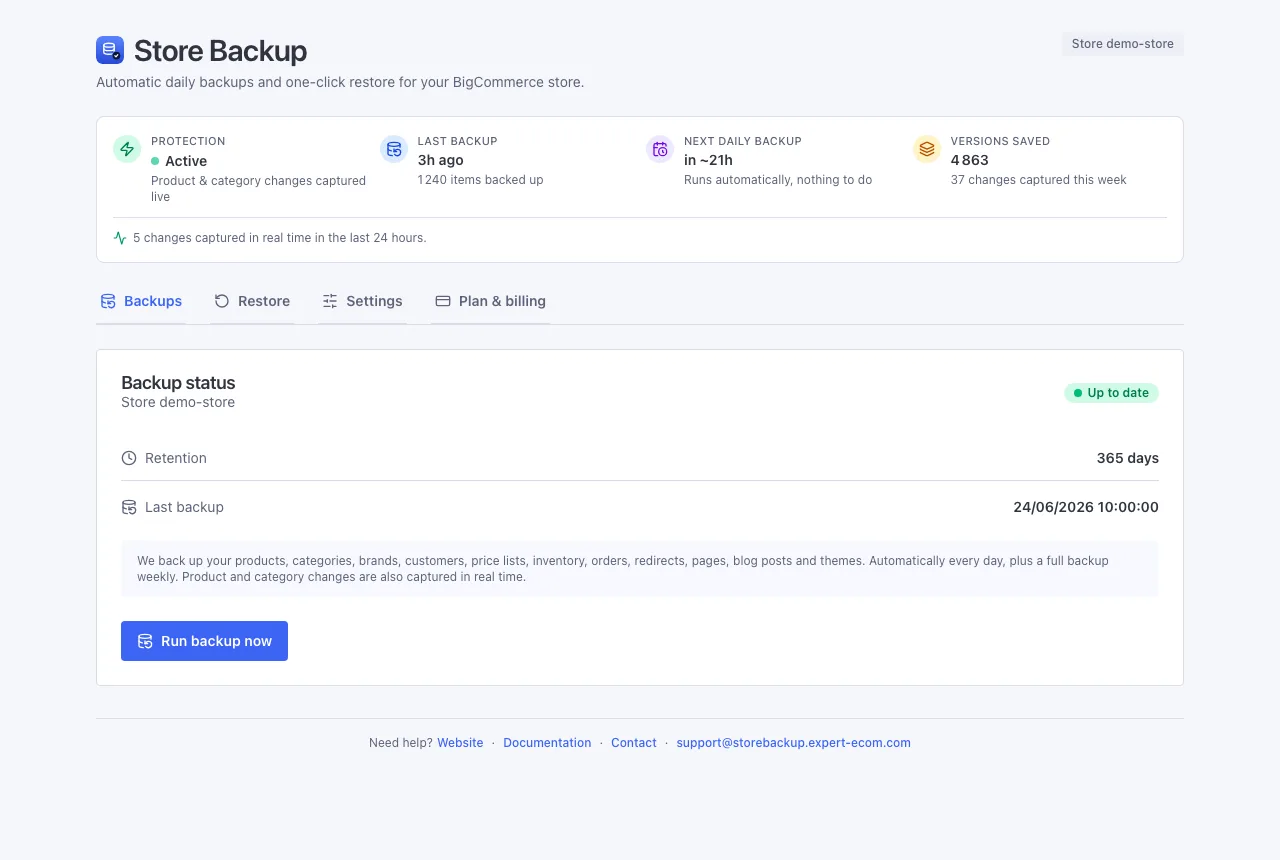
That's really it
From here on, backups happen every day, all on their own. The day you need to undo a mistake, head to Restoring data and you'll be glad it was there.
Next: How it works