Restoring data
Bring data back to an earlier version - one item or hundreds, in seconds.
A quick example
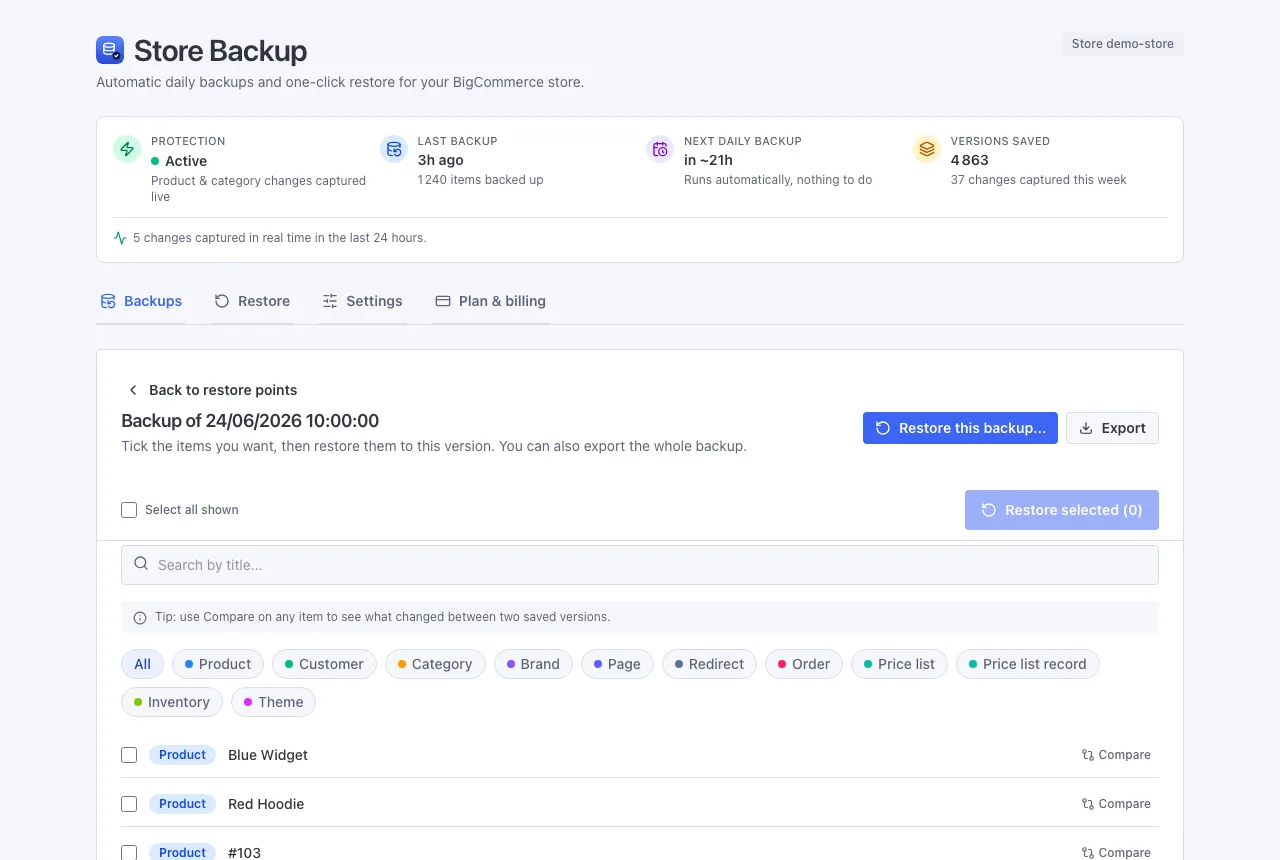
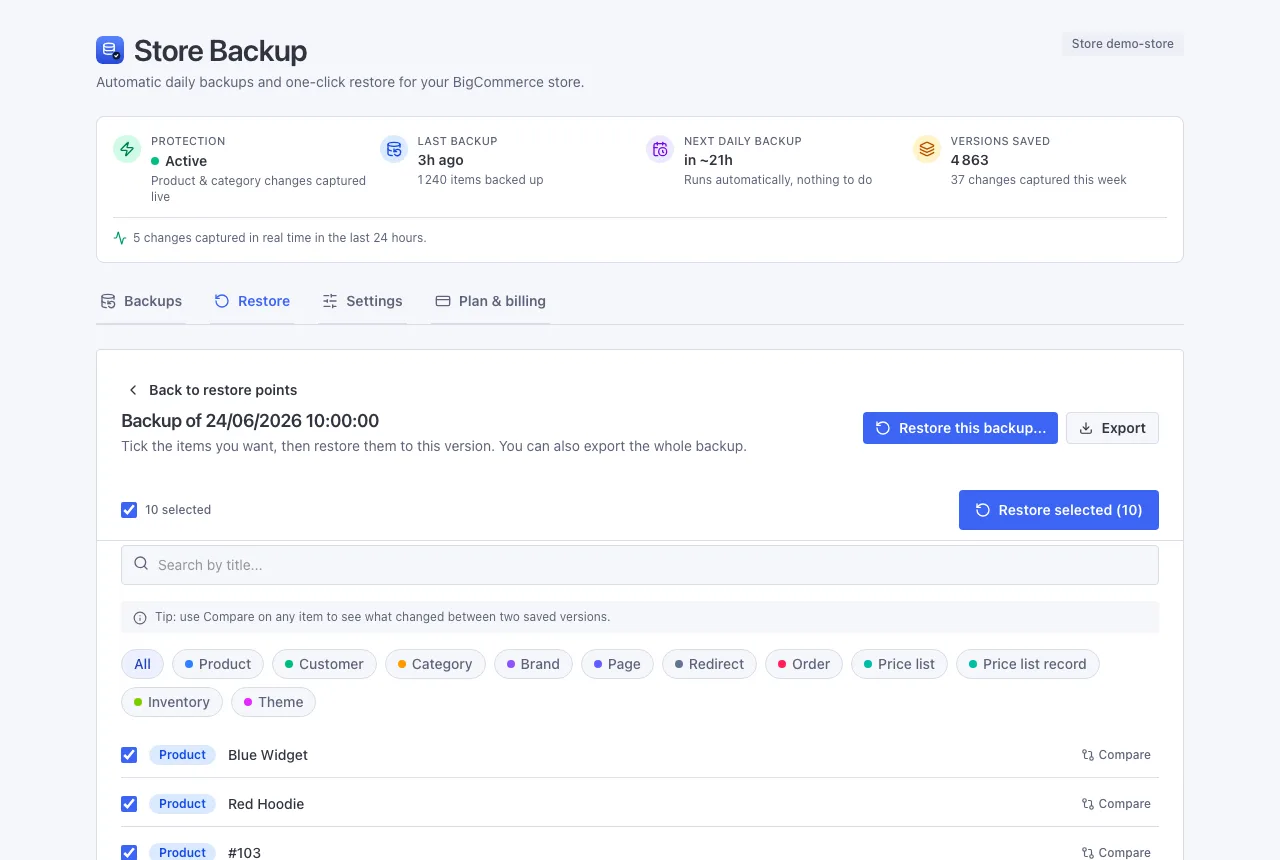
Say a bulk edit went wrong this morning and wiped the prices on fifty products. Open today's earlier backup, tick those fifty products, click Restore selected, and their old prices are back - before your next customer even notices.
How to restore
- Open the Restore tab and pick a backup (by its date), or open Real-time changes for the very latest versions.
- Find what you need: search by name, or filter by kind (products, customers, categories, and so on).
- Tick the items, click Restore selected, and confirm.
It takes seconds. We update each item in place if it still exists, or recreate it if it was deleted.
No accidental duplicates
We always recognise an item by something that doesn't change, so a restore never creates a second copy by mistake:
- Products and their options - by their code (SKU)
- Customers - by their email
- Categories and brands - by their name
- Pages - by their web address; redirects - by their old path
Bringing back something you deleted
Deleted a product and want it back? We recreate it in the right order - brands and categories first, then the product, then its photos - and we fix the links, so the product points to the correct brand and categories again, just like before.
Restoring a whole backup
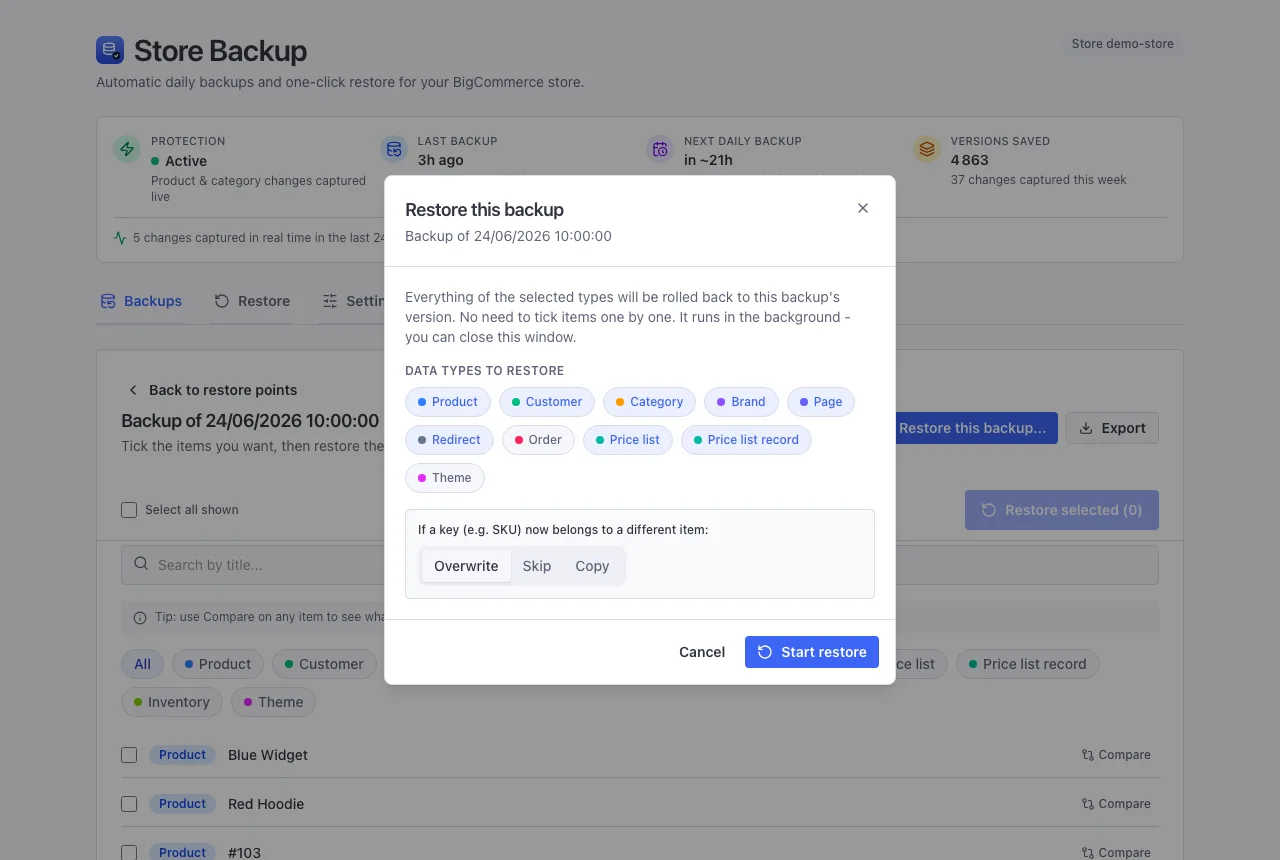
You can also restore a backup in one action with the Restore this backup button. To keep it safe, the heavyweight choices stay yours: orders and your theme are never included unless you tick them explicitly.
Not sure what changed? Compare first
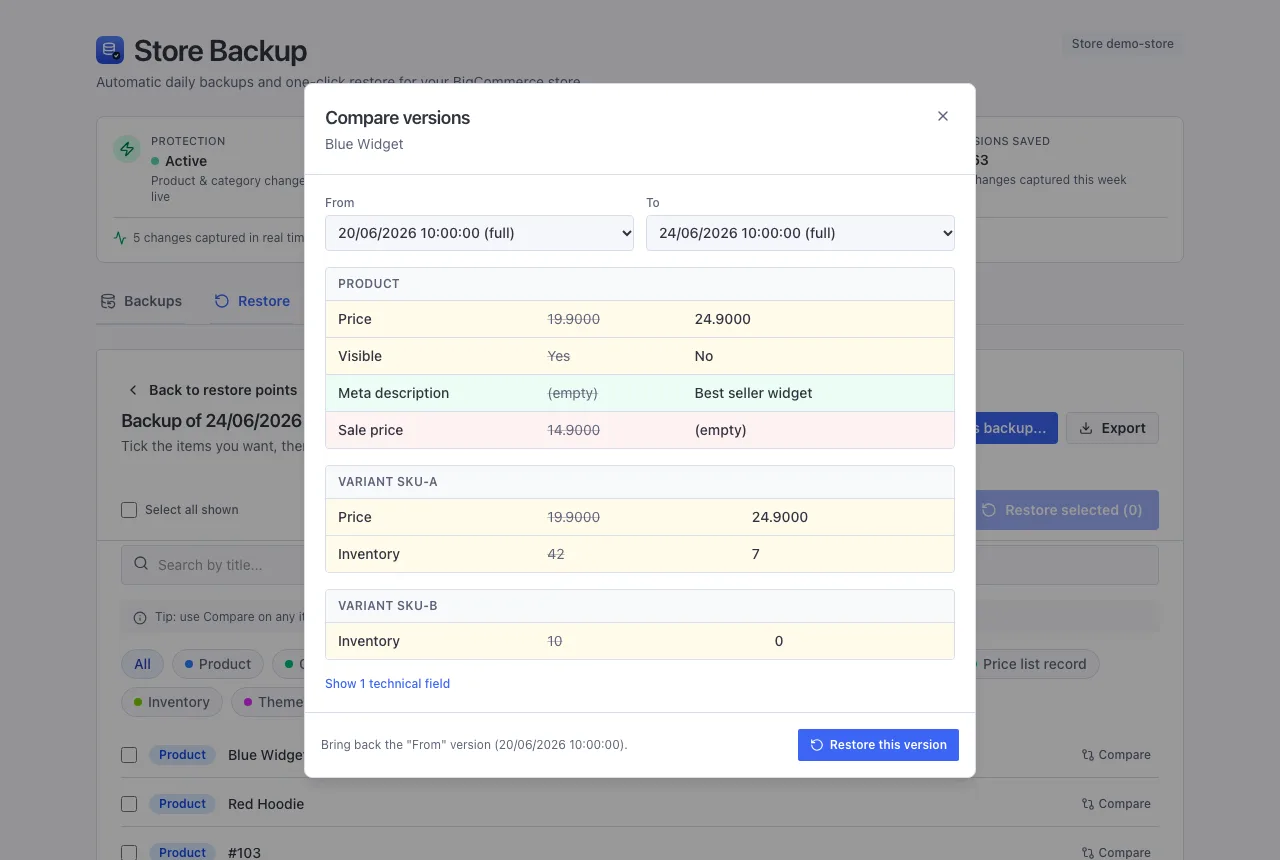
Every item has a Compare link that shows what changed between two saved versions, field by field, before you restore anything.
When the same code is now used by something else
Once in a while, a code (like a SKU) you are restoring now belongs to a different product. You decide what happens, each time you restore:
- Overwrite (the default) - your backup wins.
- Skip - leave the other item alone and move on.
- Make a copy - bring yours back as a copy (its code gets a
-restoredtag), so nothing is overwritten.